Editor interactions
Add, connect, select, duplicate. Every interaction the canvas supports
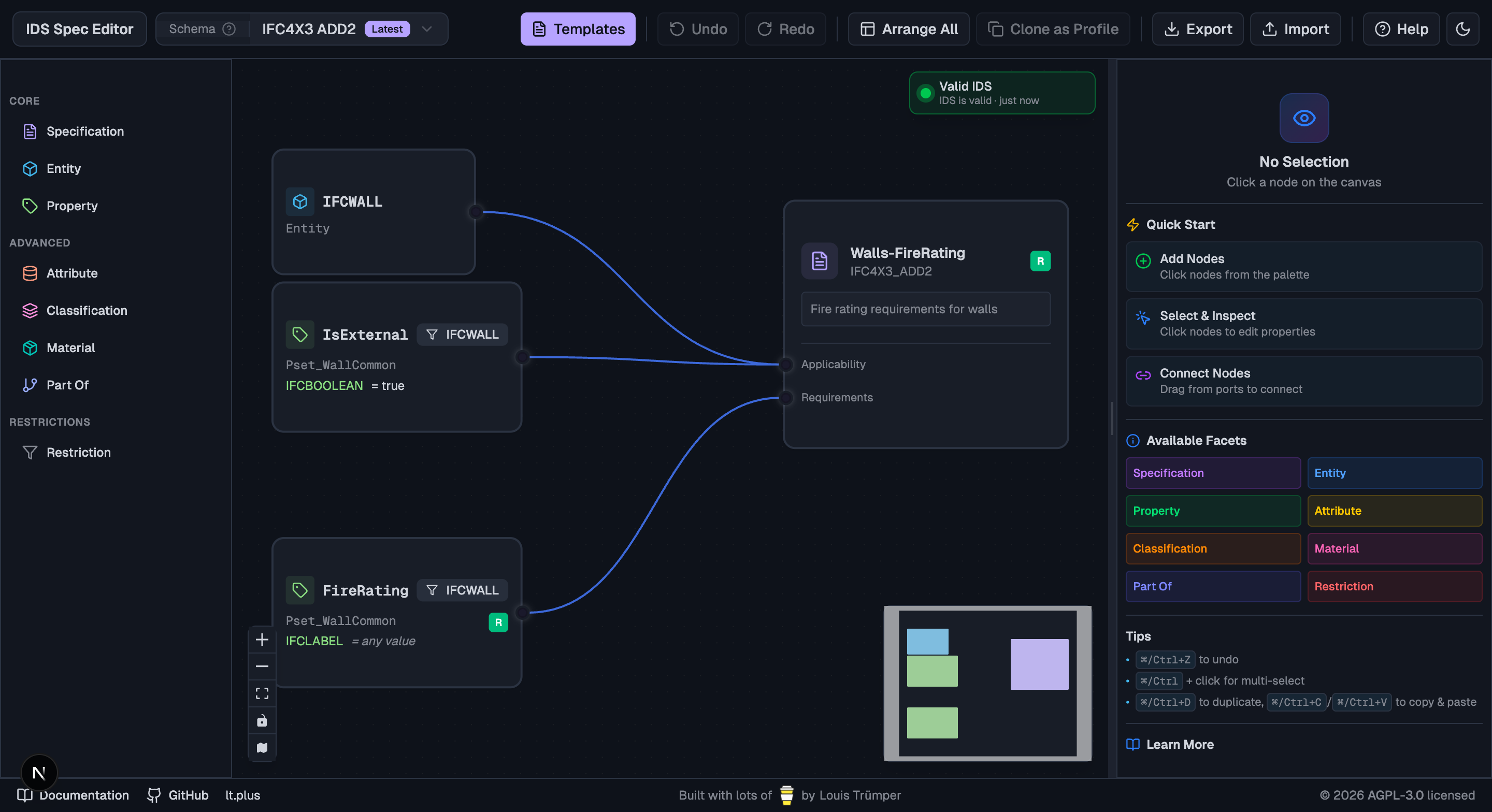
The editor has three panes — the palette on the left, the canvas in the middle, the inspector on the right — and a single toolbar across the top. This page covers the interactions you'll use every minute.
Adding nodes
Two ways:
- Click a node in the palette → it's dropped near the center of the visible canvas.
- Drag a node from the palette to the canvas → it lands exactly where you drop.
Drag is the one you'll want once your canvas has more than a few nodes — the click drop can land on top of existing nodes.
Connecting nodes
Every Specification has two ports: Applicability on the upper edge, Requirements on the lower edge.
To wire a facet into a spec:
- Click and hold the small dot on the right side of the facet node.
- Drag the line to the spec's
ApplicabilityorRequirementsport. - Release.
Restriction nodes connect the same way, but the chain is facet → restriction → spec.
Selecting
- Click a node to select just it. Its properties appear in the inspector.
⌘ / Ctrl+ click to add or remove a node from a multi-selection. This is the multi-select modifier — not Shift, as you might expect from other tools.⌘ / Ctrl+ A selects every node on the canvas.- Drag across empty canvas to marquee-select everything inside the rectangle.
Duplicate, copy, paste
These all work on the current selection — including multi-selections, so you can clone a whole sub-graph in one shot. Internal edges (edges between the selected nodes) come along; edges leading out of the selection don't.
| Shortcut | Action |
|---|---|
⌘ / Ctrl + D | Duplicate selection in place (offset slightly so it's visible) |
⌘ / Ctrl + C | Copy to the in-canvas clipboard |
⌘ / Ctrl + V | Paste — successive pastes offset further so they don't stack |
Validation overlay
A small status pill sits in the top-right of the canvas:
- 🟢 Valid — the IDS XML the editor produces parses cleanly against the buildingSMART schema.
- 🟠 Warnings — non-blocking issues like a property with no
propertySet. The XML still exports, but a checker might flag the gap. - 🔴 Invalid — there's a hard problem (e.g. no specification on the canvas). Click the pill to expand the failure list.
- ⚪ Idle — no spec yet, nothing to validate.
- A blue pulsing dot means validation is running (debounced ~2s after your last edit).
Validation happens entirely in the browser via @ifc-lite/ids — there's no round-trip to a server.
Canvas controls
Bottom-left of the canvas:
- + / − — zoom in/out (or pinch / scroll-wheel).
- Fit view — re-fit everything on the canvas to the viewport.
- Lock — toggle pan/zoom on or off.
- Map icon — show or hide the minimap (lower right). Click in the minimap to jump.
Keyboard shortcuts
All shortcuts use ⌘ on macOS and Ctrl on Windows / Linux.
| Shortcut | Action |
|---|---|
⌘ / Ctrl + Z | Undo |
⌘ / Ctrl + Shift + Z (or ⌘ / Ctrl + Y) | Redo |
⌘ / Ctrl + A | Select all nodes |
⌘ / Ctrl + click | Add / remove from selection |
⌘ / Ctrl + D | Duplicate selection |
⌘ / Ctrl + C | Copy selection |
⌘ / Ctrl + V | Paste |
Delete / Backspace | Remove the selected nodes and edges |
Templates
Click Templates in the toolbar for ready-made specifications you can drop in: fire-rating checks, structural materials, space-area requirements, and more. The template lands on a clear area of the canvas — you can then edit any of its nodes like normal.
Schema version
The toolbar's Schema dropdown picks the IFC version your specification targets (IFC2X3, IFC4, IFC4X3 ADD2). The version influences which entities, property sets, and predefined types the editor suggests. The default (IFC4X3 ADD2) is the latest.